Menu Navigation and Functions
The basic structure of the DO-1 user interface consists of 7 main menu items:
- Homepage: Individual dashboard using the connected devices on the DO-1.
- System: Status display, system settings and configuration options, system logs, process images, and network settings.
- Dashboard: Configuration of the evaluation views, display in an overview list, and the option to view the created views separately in a preview.
- Data logging: Definition of parameters to record information, statuses, or events. A preview allows the saved data to be displayed and the files to be downloaded for further processing and analysis.
- Device: Display of Modbus RTU information, as well as creation of new Modbus TCPs , library of device templates, and creation of connected devices in the system.
- Data Automation: Define and configure custom calculations, set alarm conditions to generate notifications and actions when certain conditions are met.
- Permission: Settings to manage the access rights and roles of users.
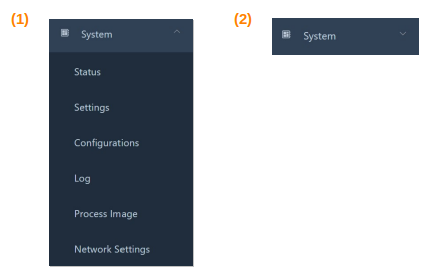
All these menu items contain submenus which can be expanded (1) or collapsed (2) by clicking on the respective menu item.
In addition, the main menu can be shown or hidden by clicking on this symbol:
General Operating Instructions
In addition to the main menu, there are other functions in the basic structure of the user interface. These are also available on every page and are located at the top right.
Status Display
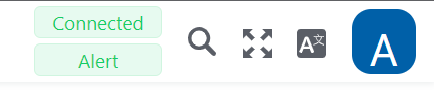
This shows whether the DO-1 has been successfully connected and whether alarms have occurred. Alarms can only occur once the first devices have been registered in the system and the corresponding alarm messages have been configured.
- Connection/Alert green: The DO-1 is connected and there are no existing alerts.
- Alert red: Alerts are present.
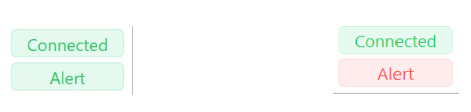
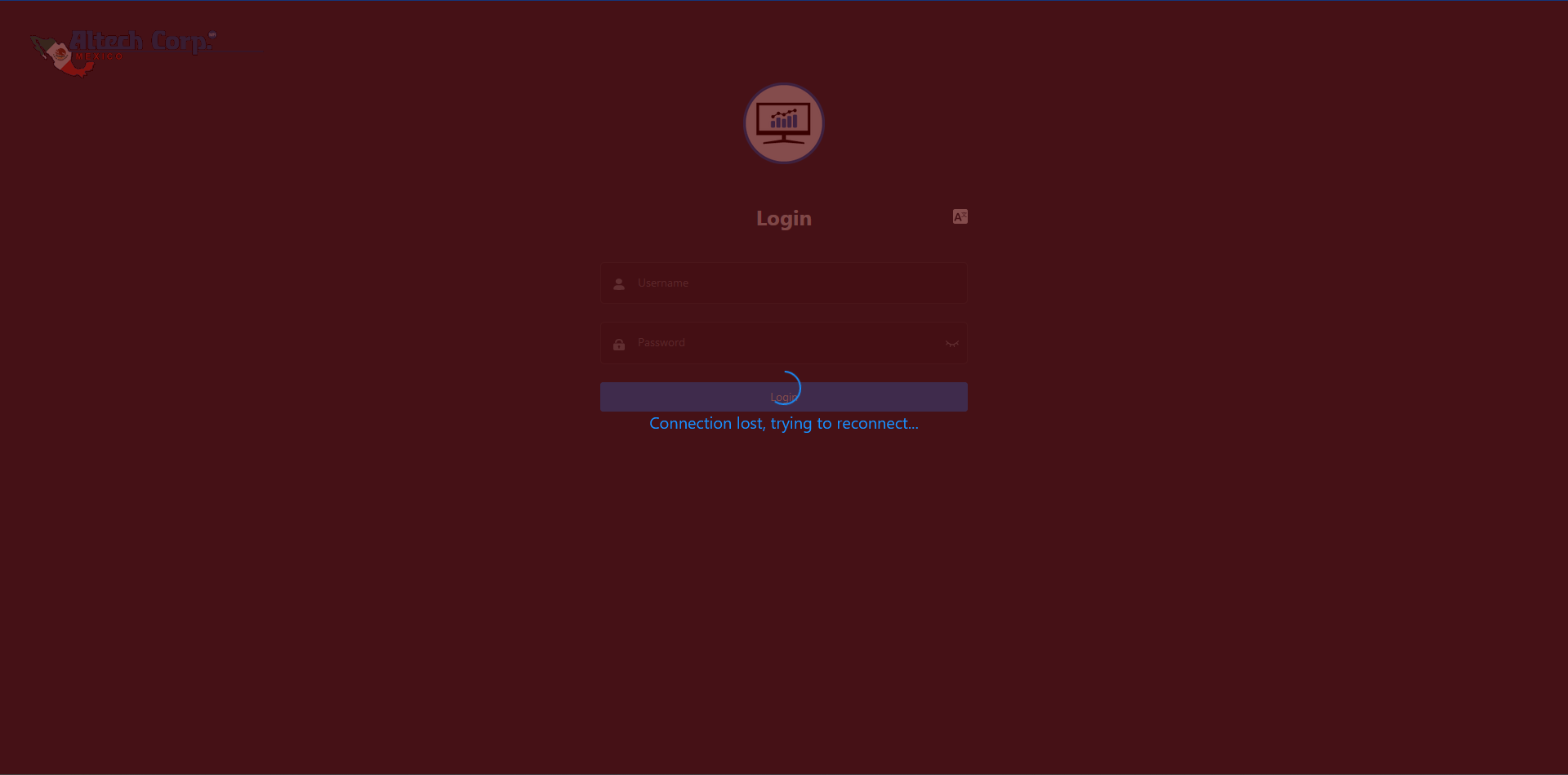
Interrupted connection:
If there is a network failure or the power supply is interrupted, access to the user interface is disconnected. The website turns red and an attempt is made to re-establish the connection:
Additional Functions
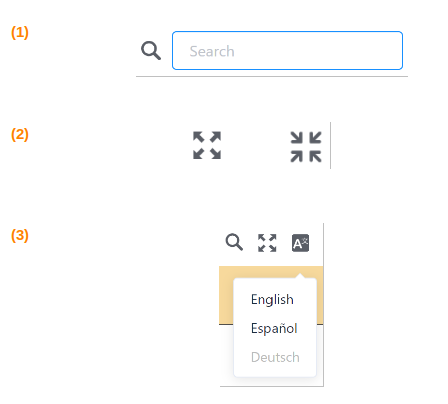
On the page header you may: (1) Search for content in the web portal, (2) Enable or disable full screen mode,(3) Change the desired language (currently English, German, Spanish can be selected).
User Options
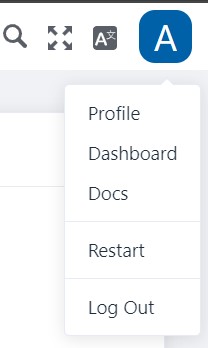
The icon at the top right-hand corner of the menu bar takes you to your own user options:
Profile
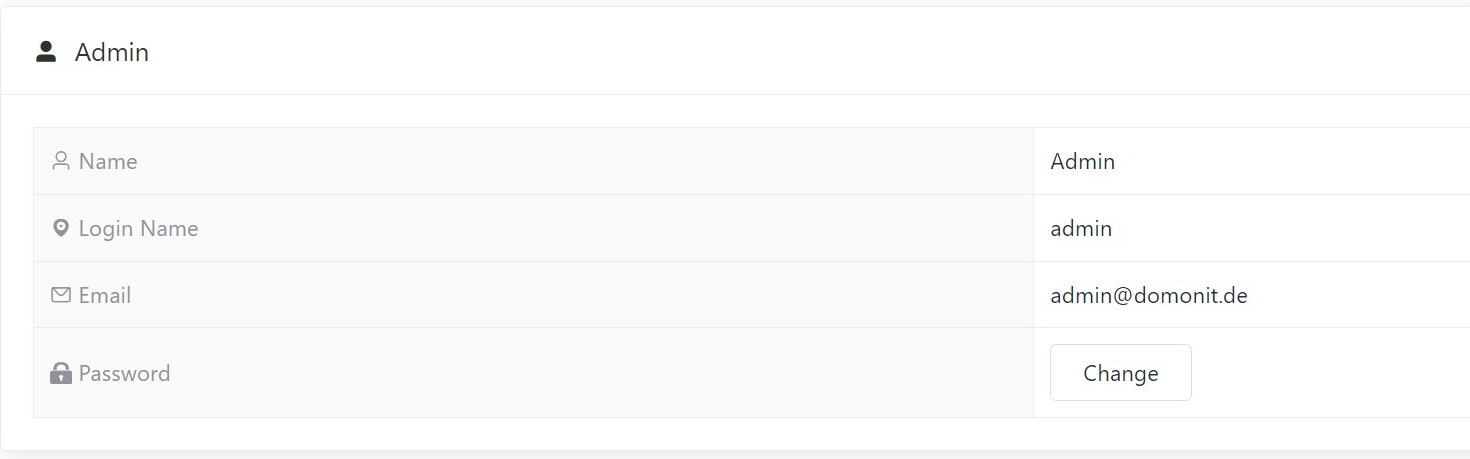
Direct link to your own user profile. By clicking the “Profile” option, you will be redirected to your own profile page. Here you will find the basic information and can also change the password for your own user. It is recommended to change the default password “admin” after the first login to ensure the security of your account.
Change password
- Access profile via the user options.
- Click on the Change button to the right of password in the table.
- Enter a new password under “New”.

- Enter this password again in the “Repeat” field.
- Click on “Set password” to store the new password for your own profile.
Dashboard/Home
Direct link to the dashboard/start page of the configuration currently in use.
Docs
Direct link to the online help section. Clicking on the “Docs” function opens the following website in a new tab: DO-1 Documentation. Here you will find all relevant documents, device templates, and further information about the DO-1 Universal Monitor.
Restart / Log out
Restarting the device or restarting the user interface. When you click on this function, a pop-up window appears with a warning and two restart options:
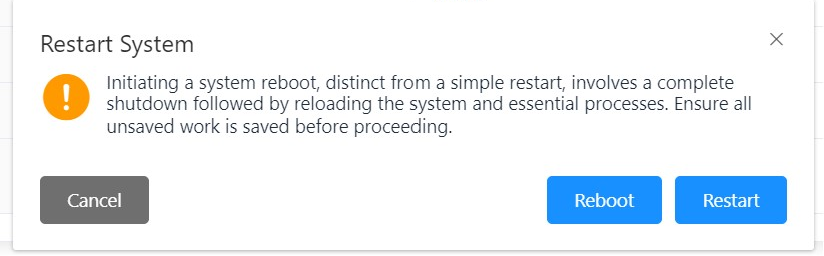
- Reboot: The Universal Monitor DO-1 is shut down completely and restarted.
- Restart: This restarts the user interface and all busses, as well as the configuration.
- Log out: Regular log out from the user interface.
Manage Changes
The changes are only applied by clicking this button. If a change requires a restart, a prompt to restart the device is displayed.
Deletion of Entries
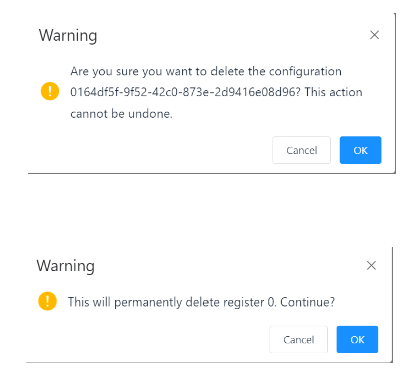
When deleting an entry in the various functions of the DO-1, a warning message appears which must be confirmed in order to permanently delete the entry. If this message is not confirmed, the entry is retained.
Example warning pop-ups: