OnControl - Access your DO-1 from anywhere
General Information
OnControl is your remote access solution for the DO-1 Universal Monitor. Monitor your connected Modbus devices in real-time, even when you’re on the go. Stay informed about the status of your devices and receive timely alerts to address any issues.
Be safe! None of your company’s crucial data is stored in the cloud. All company data of your building, plant, or machinery is stored locally on your DO-1 Universal Monitor. The internet is used only to provide a one-to-one connection from your internet browser to your DO-1 Universal Monitor. A completely safe, secure, and encrypted connection between your browser and a DO-1 is established to ensure nobody will have access to your crucial company data.
Be shareable! OnControl makes it simple to securely share your devices with others. With just a few clicks, you can grant access to your devices and control permissions, all while ensuring data and privacy remain protected. Whether collaborating with team members or providing remote support, OnControl ensures seamless and secure sharing, tailored to your needs.
Be alert! Check the connection status of any Modbus devices that the DO-1 is connected to, and all activity affecting your building, plant, or machinery. Receive notifications from your Modbus networks in real-time the moment they occur. Customizable notifications allow you to configure them to suit you or your organization’s needs.
Be organized! Single account login allows you to monitor all your Modbus networks without having to switch accounts. Streamlined navigation allows users to easily switch between DO-1 devices.
Be mobile! All of the data from OnControl is now in a single tool, enabling you to monitor your Modbus network’s health from anywhere, at any time. Optimization for mobile devices allows for easy viewing while you are on the move.
Be OnControl! Easily accessible event logs for every Modbus device to assist you in making tough decisions even when you are out of the office. In-depth monitoring allows you to check the connection status of any device the DO-1 is connected to, and all activity affecting your building, plant, or machinery.
Getting Started
To get started with OnControl, you need to have a DO-1 Universal Monitor and an active internet connection additionally you need to have access to the DO-1 Web-Interface.
Create an OnControl account
Set your DO-1 to pairing mode
Pair your DO-1 with your OnControl account
Access your DO-1 from anywhere
Create an OnControl account
Go to OnControl and create an account. You can use your email address or your Google account to sign up.
If you’re using your email address, you’ll receive an email with a link to verify your account. Click on the link to verify your account. If you already have an account, you can log in with your credentials.
Set your DO-1 to pairing mode
To pair your DO-1 with your OnControl account, you need to set your DO-1 to pairing mode. To do this, go to the DO-1 Webinterface and navigate to the System → Status item. Click on the + Pair Device button to start the pairing procedure.
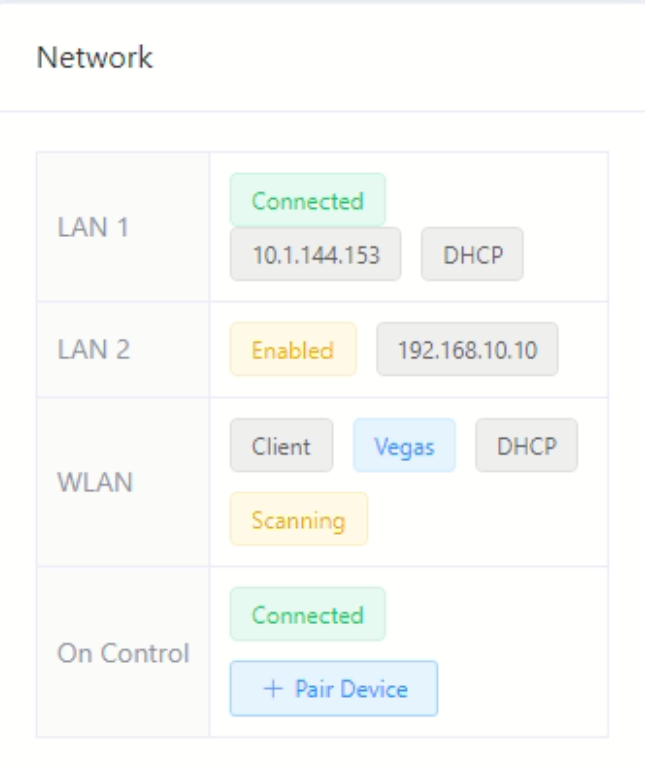
Once you’ve enabled the pairing mode, you can add it to your OnControl account by the pairing code displayed on the DO-1 Webinterface.
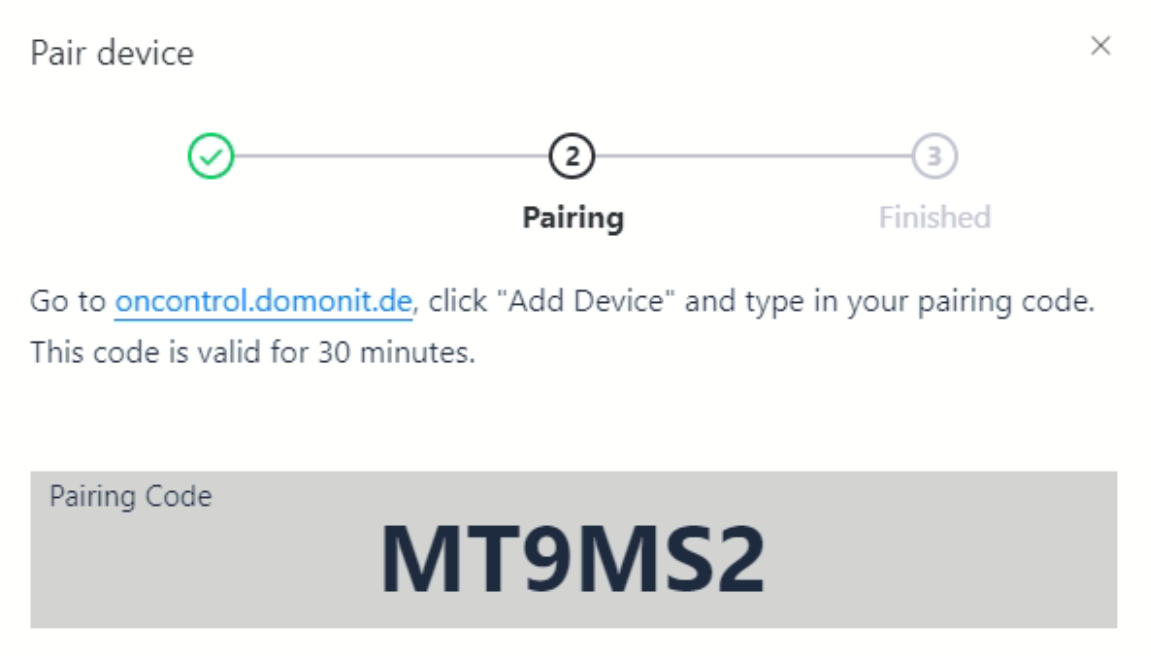
Pair your DO-1 with your OnControl account
Back in your OnControl account, click on the + Pair Device button in the upper left corner and enter the pairing code displayed on the DO-1 Webinterface.
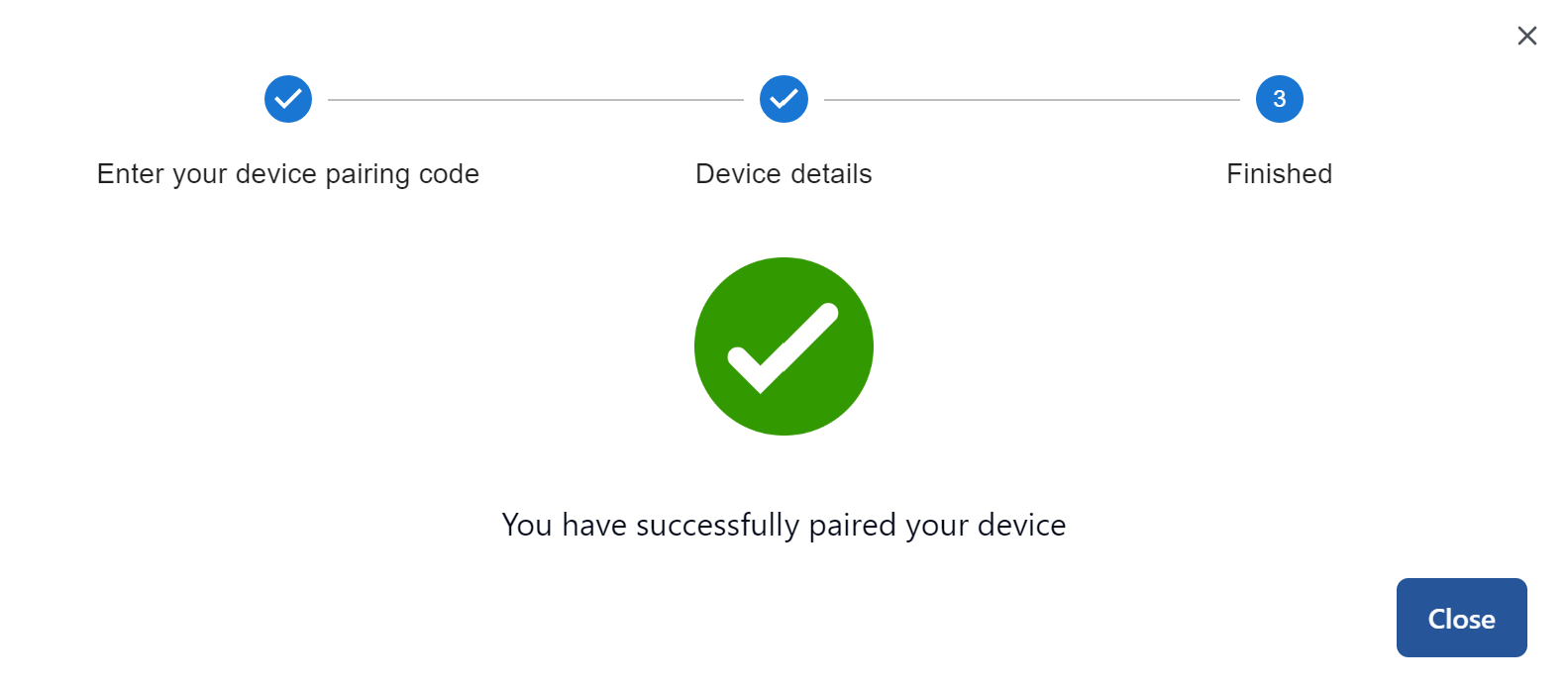
After you’ve entered the pairing code, follow the web process in the pop-up window to complete the pairing process. Now, your DO-1 is paired with your OnControl account. You can now access your DO-1 from anywhere.

Troubleshooting
The + Pair Device button is not visible in the DO-1 Webinterface
This issue can have multiple causes. Please check the following:
-
Check the DO-1 firmware version: The pairing feature is available starting from firmware version 0.2.10. If you have an older firmware version, please update your DO-1 to the latest version.
-
Check the DO-1 user account: Make sure you are logged in as an administrator. Only administrators can pair devices.
-
Check the internet connection: Make sure the DO-1 is connected to the internet. The pairing feature is only available when the DO-1 is connected to the internet.
-
Check the DO-1 pairing status: Make sure the DO-1 is not already paired with another OnControl account. If the DO-1 is already paired with another account, it cannot be paired with a different account.